How to configure VPN access to the Infrascale Cloud
Introduction
This article is a step-by-step guide on how to configure and use a VPN to access the Infrascale VPC. This topic is covered using Shrew Soft VPN Client for Windows as an example. If you use another VPN client, or another operating system, the steps may be different.
How to configure your VPN
Once support has processed the VPN request, you will receive an email with the following information:
- VPC hostname and/or IP address
- PSK (Pre-shared key)
- VPN Credentials (username and password)

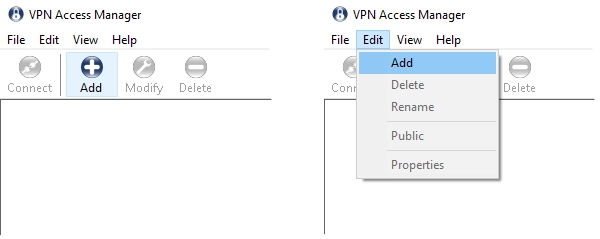
4) On the General tab, in the Host Name or IP Address box, enter the host name you received in the email.
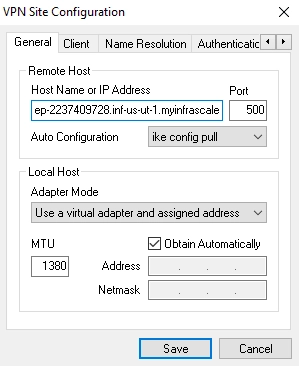
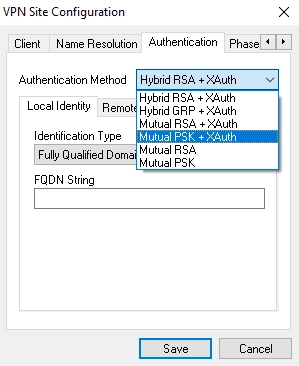
6) Open the Credentials subtab. In the Pre-Shared Key box, enter the pre-shared key you received in the email.
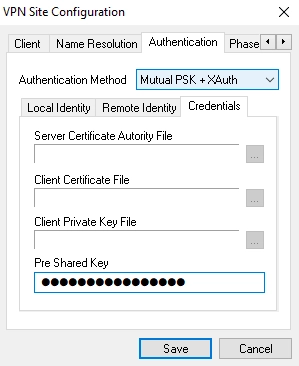
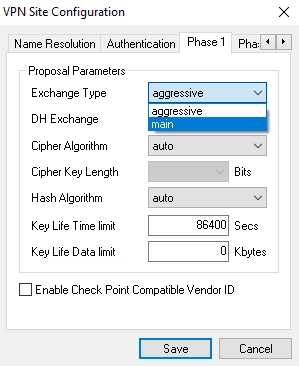
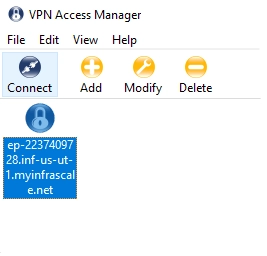
How to connect via VPN
In the case VPN connection was previously configured and saved in the VPN Access Manager, you should be able to use it without any additional changes.
1) Select the configuration, and then click Connect.
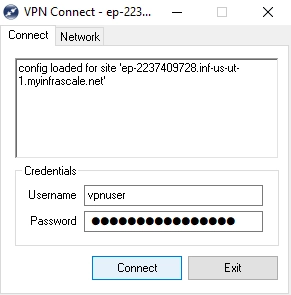
3) Click Connect to establish the VPN connection. The VPN client will show tunnel enabled if the connection has been established successfully.
Related Articles
How to access an IBDR Appliance Management Console via LAN
Introduction IBDR Appliance has its own user interface to manage backup jobs, boots, reports, and other related activities. This interface is called "Management Console" and it is web-based, which means that you can access it using a web browser ...How to reset an IBDR Appliance password
We’ve created a detailed guide on our knowledge base to make the password reset process as straightforward as possible. The article walks you through each step so you can quickly regain access to your appliance. Reset password on Backup & Disaster ...How to delete backup jobs from the IBDR appliance
Introduction It may be necessary to delete backup jobs in case they are not required anymore or to free some extra space. For the best user experience, we recommend using a retention policy instead of manually deleting jobs. However, it may be ...How to update the firmware on the IBDR Appliance
Introduction Firmware updates bring changes to the way IBDR (Infrascale Backup and Disaster Recovery) Appliances operate. They can add new features such as UI changes, bug fixes, performance improvements, stability improvements, security ...How to push the backup job to the Primary IBDR Appliance from the Secondary IBDR Appliance
Introduction There are some recovery scenarios that require the backup job to exist on the Primary IBDR Appliance, for example: Full System Image restore using DR Image backup job. Full System VM Image restore using VMware or Hyper-V job. File and ...